Navigation
Google Sheets File Menu
Throughout this user guide you'll see references to the "Google Sheets file menu" (File, Edit, View, etc.) not your browser's file menu. While both contain similar options (such as File > Print), you'll want to avoid your browser's file menu when working in Google Sheets.
The Google Sheets file menu might be hidden. Clicking the arrow icon near the top right will toggle it.

Worksheets
The workbook is organized into multiple worksheets, accessible via tabs at the bottom.

The sheets you'll use most often are on the left. Then reports in the middle. Less frequently used worksheets (such as those for the start or end of year) are located near the far right.
Sheet Navigation
Use the left and right arrows near the bottom right to navigate through the row of sheets.

If you accidentally open the side panel (far right arrow), simply click the arrow again to collapse it.
Hamburger Navigation
Click the "hamburger" icon to scroll through and select sheets from a vertical list.
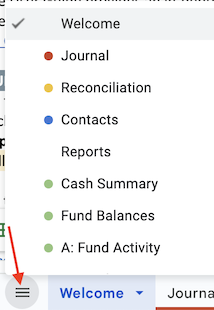
Caution: At the bottom of the list, you'll see some grayed-out "ADMIN" sheets. These are hidden and intended for extremely advanced users only.
Worksheet Colors
Each worksheet is color-coded for easy identification:
- Red is your journal.
- Yellow is for bank reconciliation.
- Blue is for contacts.
- Green are reports.
- Black are for inputting settings, funds, chart of accounts, and budgets.
- Purple are for generating donor tax statements.
